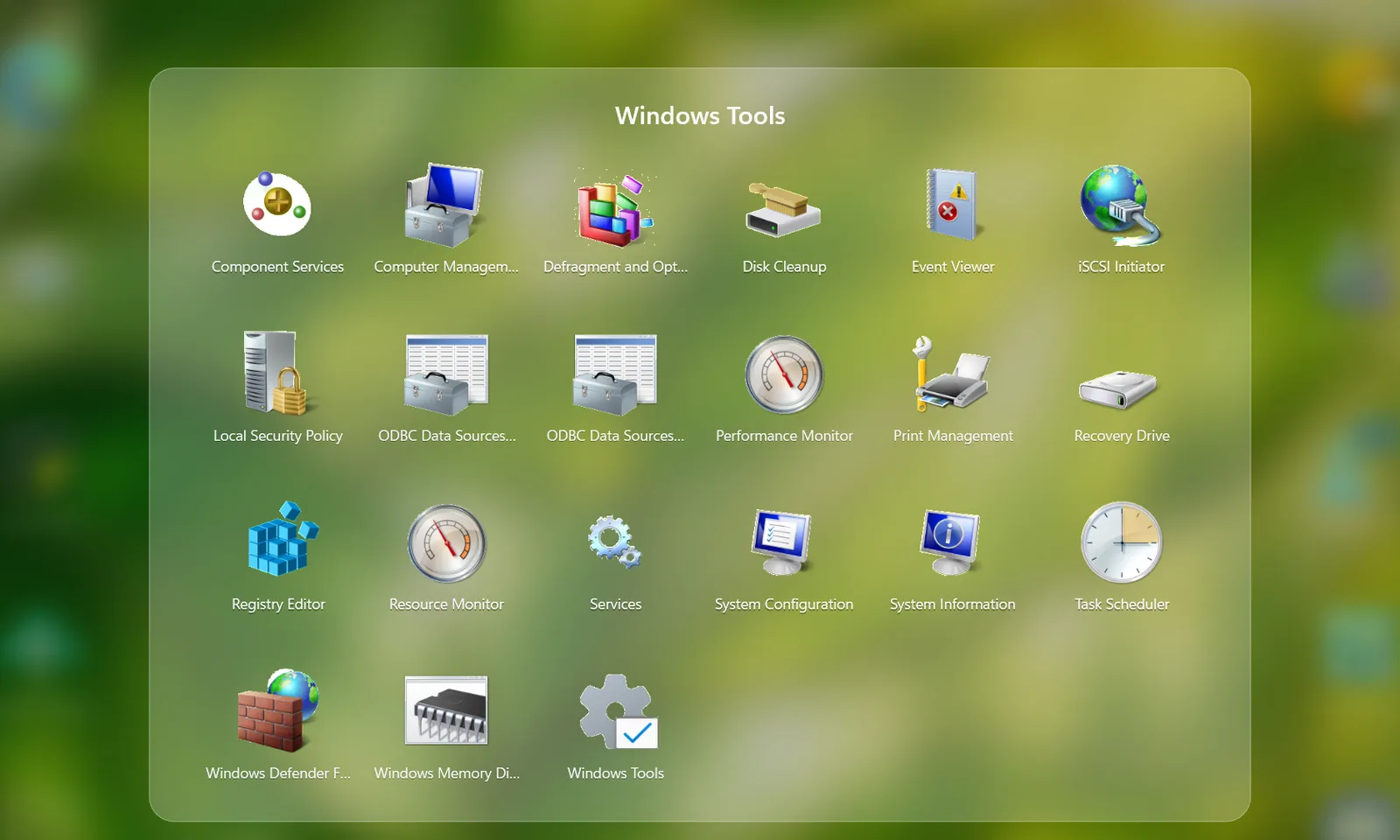
Folders in Launchpad
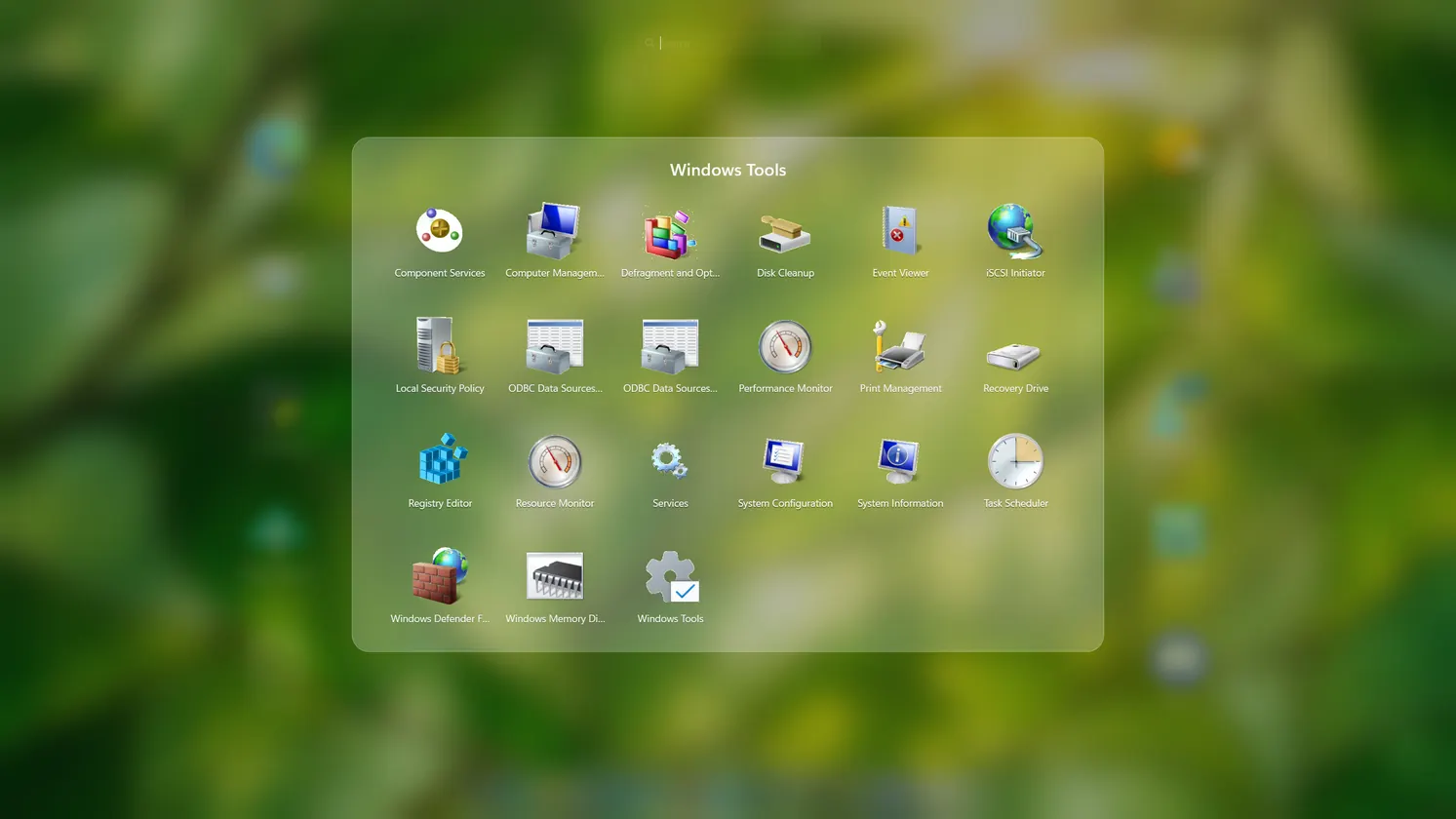
Drop one app on another to make a folder, then click its name to call it what you like.
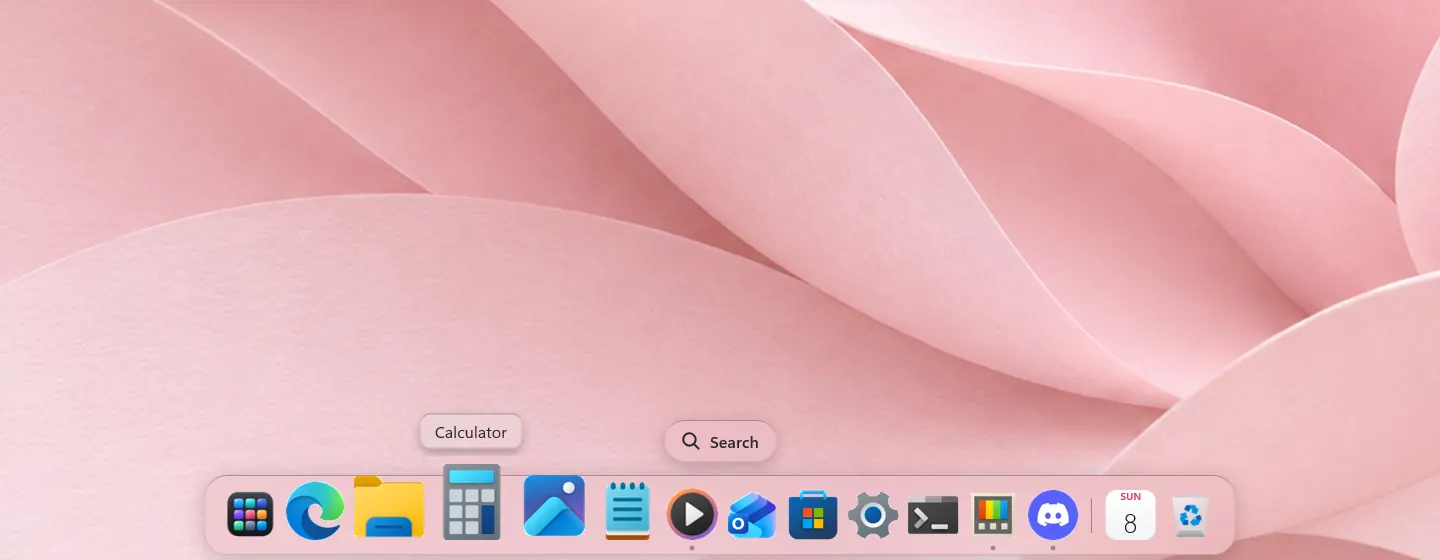
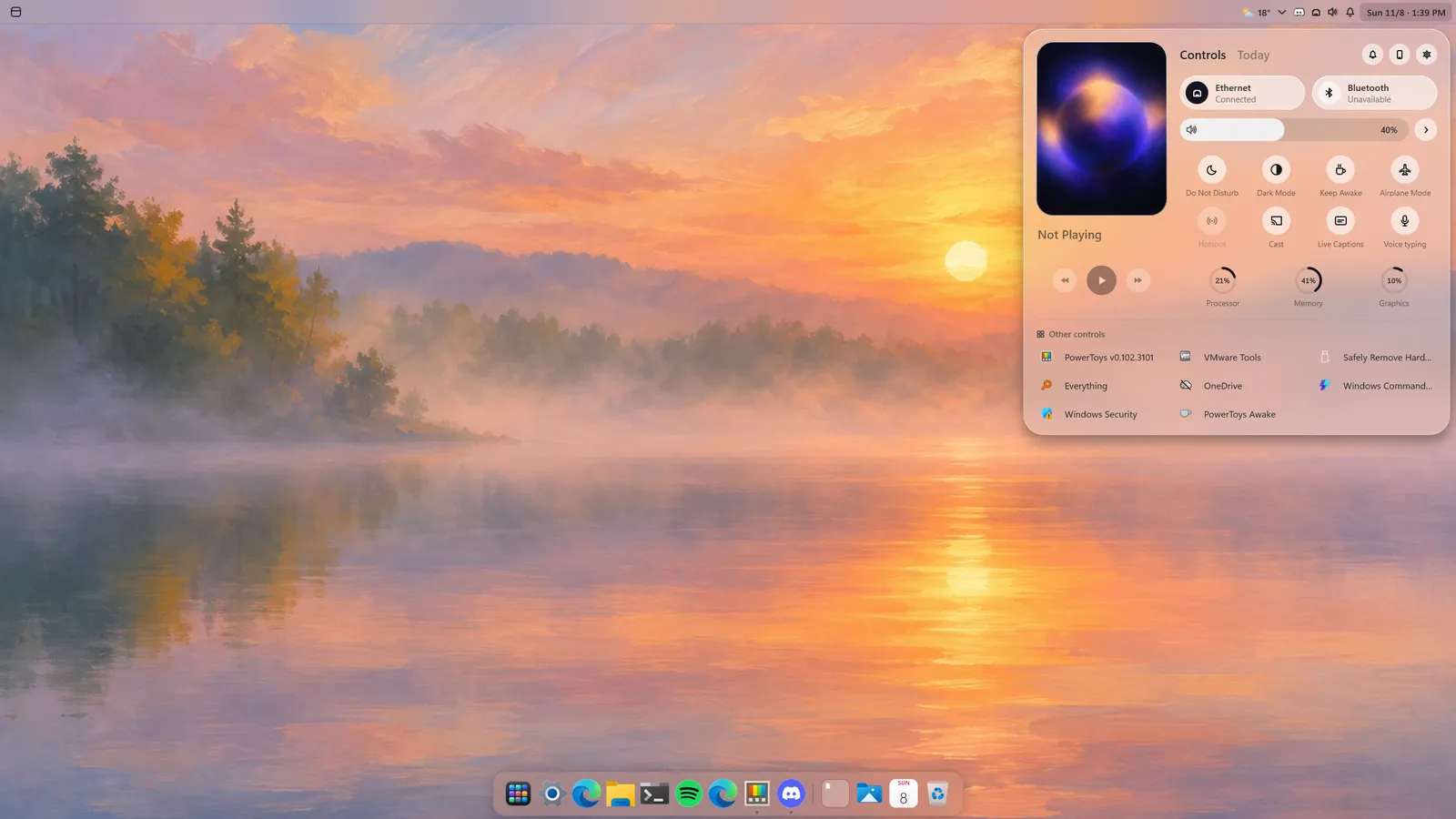
A menu bar, a dock, Launchpad and Search for Windows 11.
This desktop is live. Click the logo, open Launchpad from the dock, or make the dock your own.
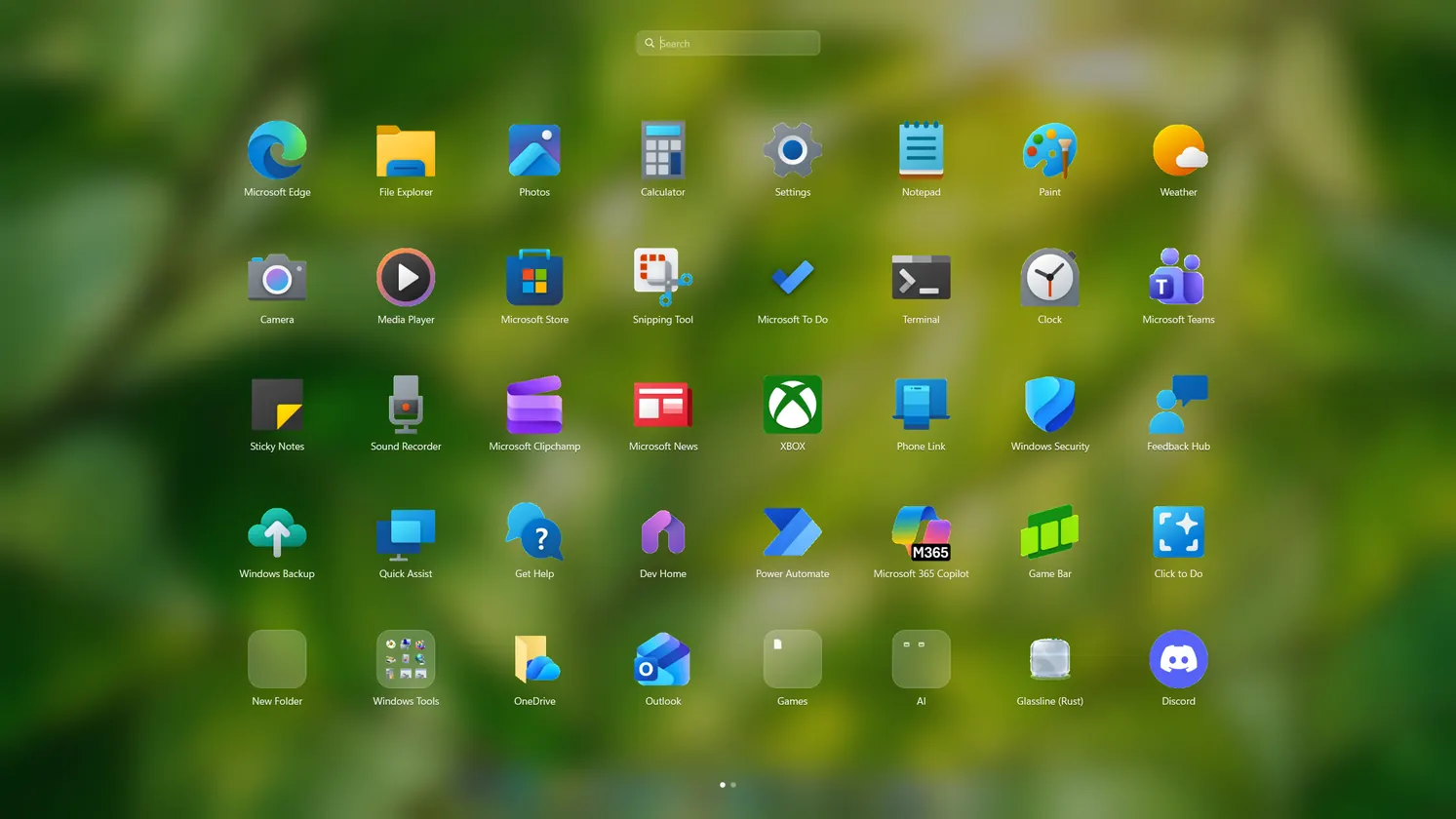
Launchpad
Click the Apps icon in the dock to see every app you have, and type to find one.
How it worksScreenshots
Press Alt Shift 4, drag over what you want, and the picture lands on your desktop.
How it worksDock
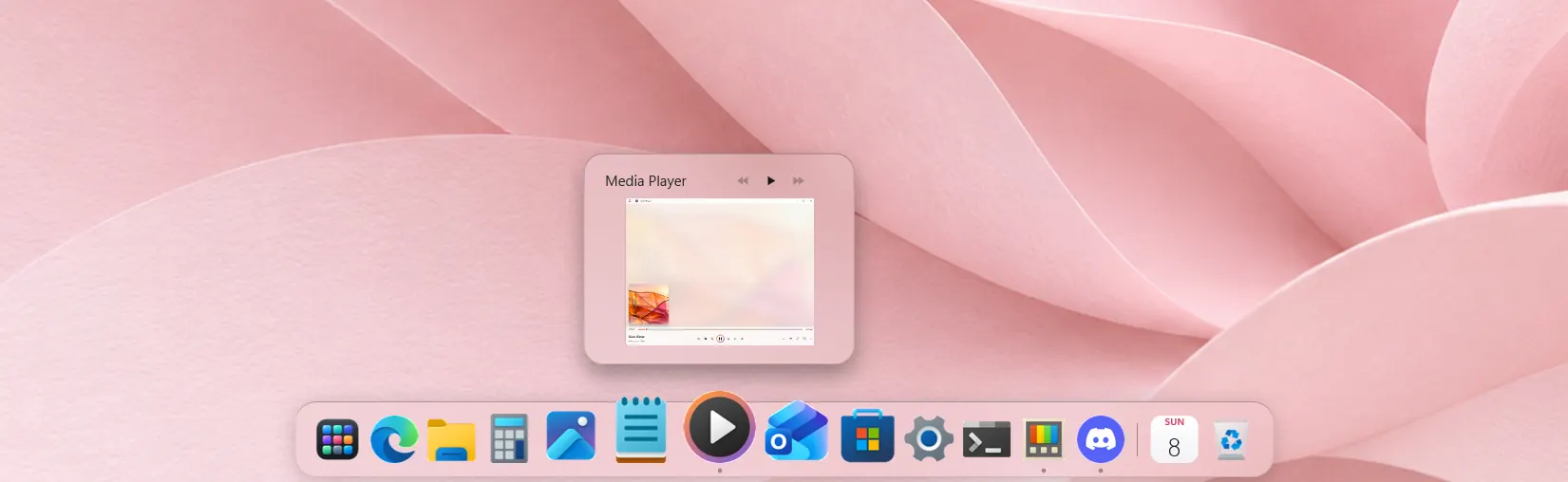
Rest the pointer on an app to see its windows live, and drop in a folder to open it as a stack.
How it worksMenu bar
Maximize a window and the bar takes its colour while the dock slides away, so the app fills the screen.
How it worksGlass
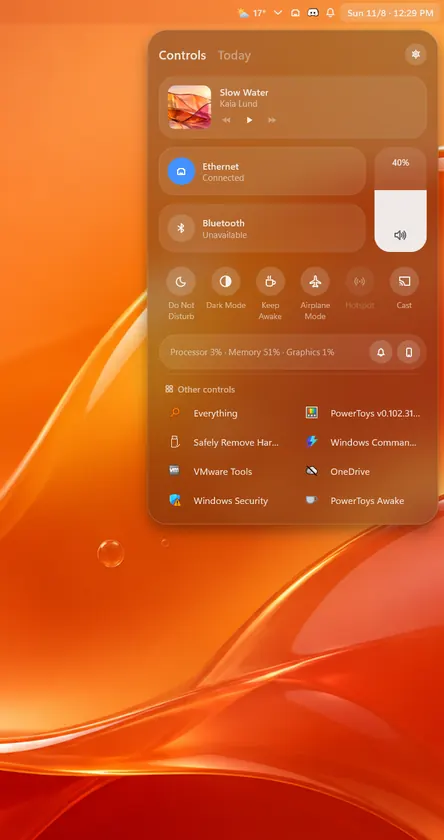
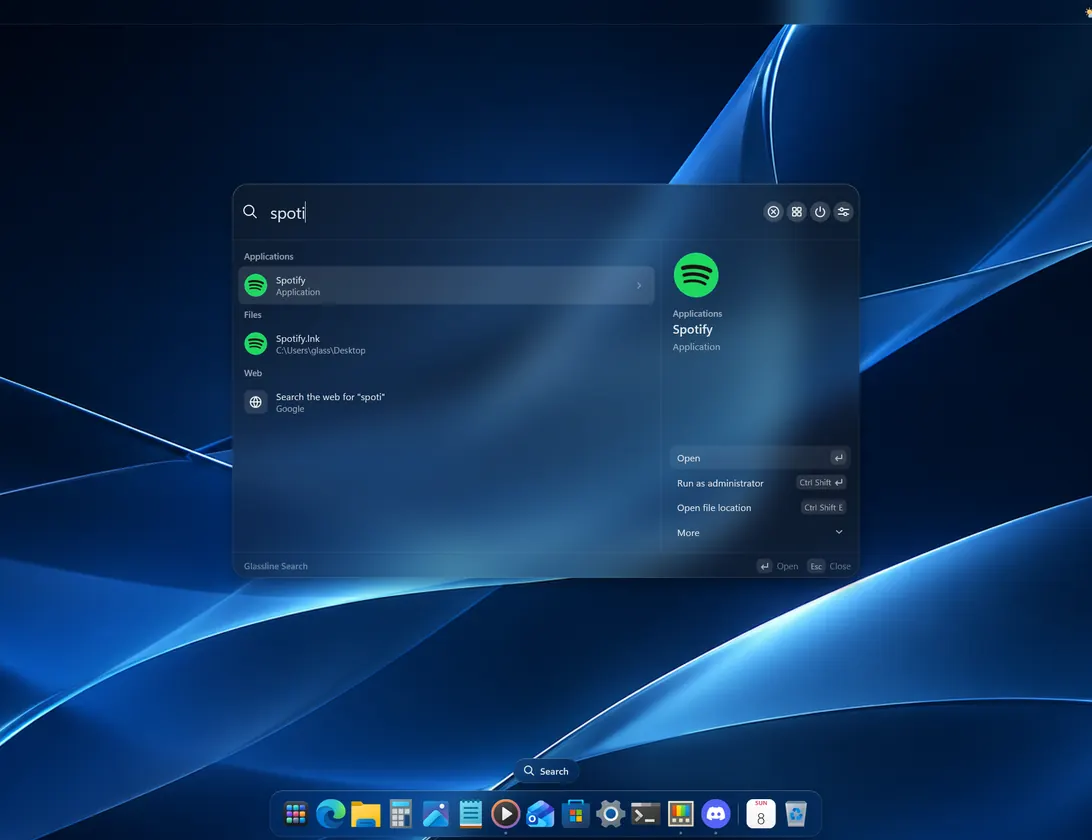
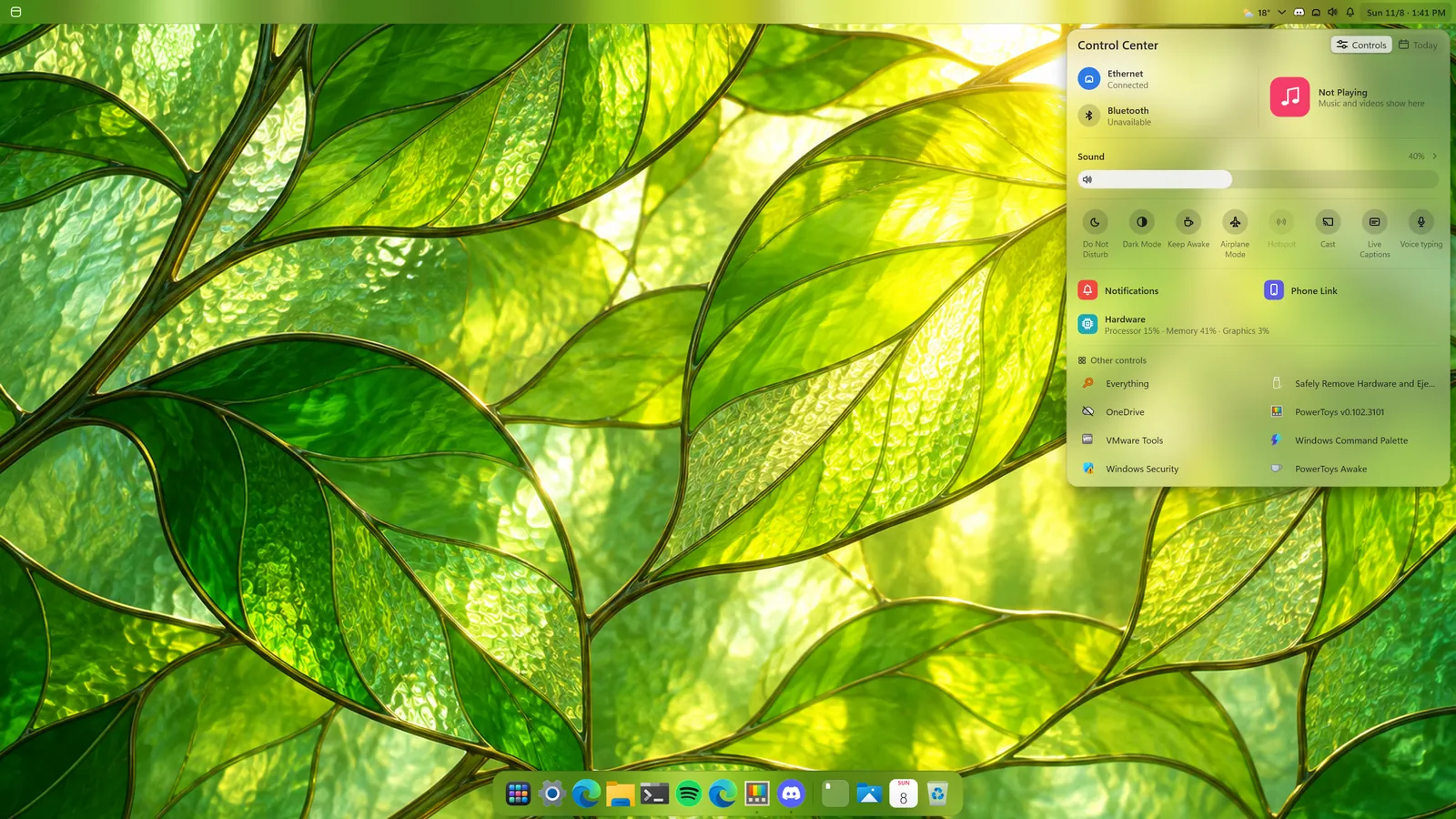
Menus, Search and Control Center take the colour of what is behind them, live wallpapers included.
How it worksSearch
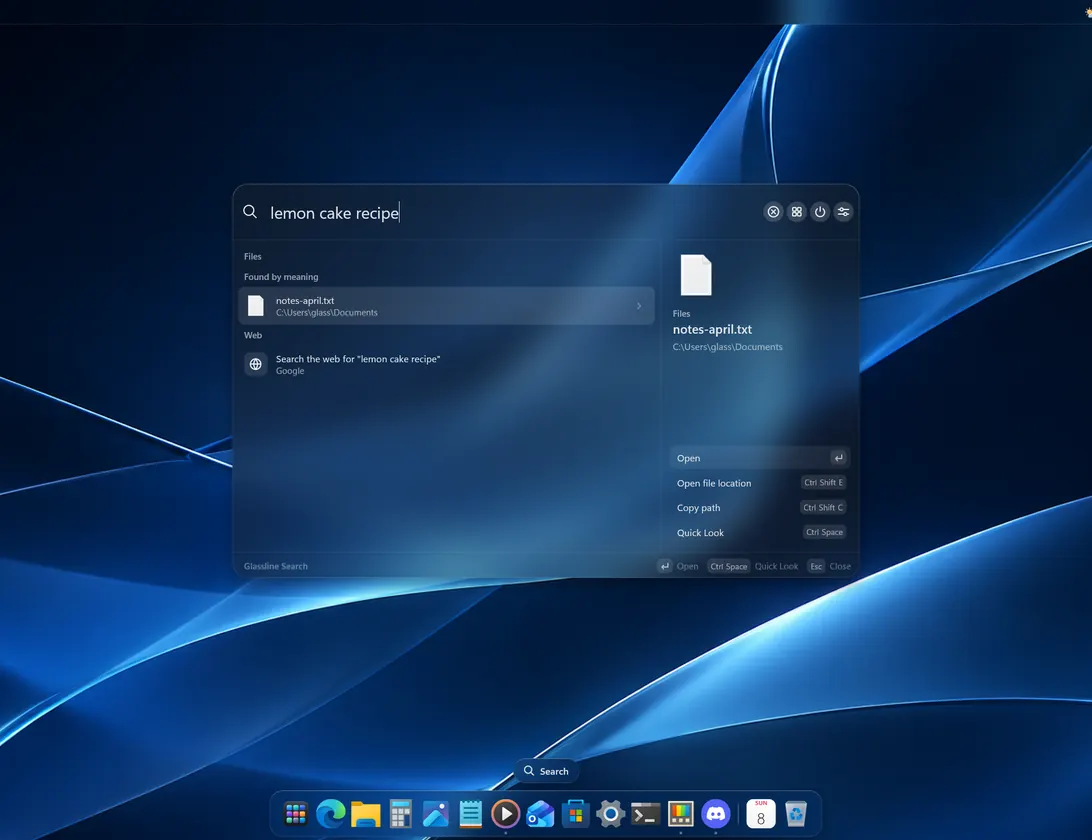
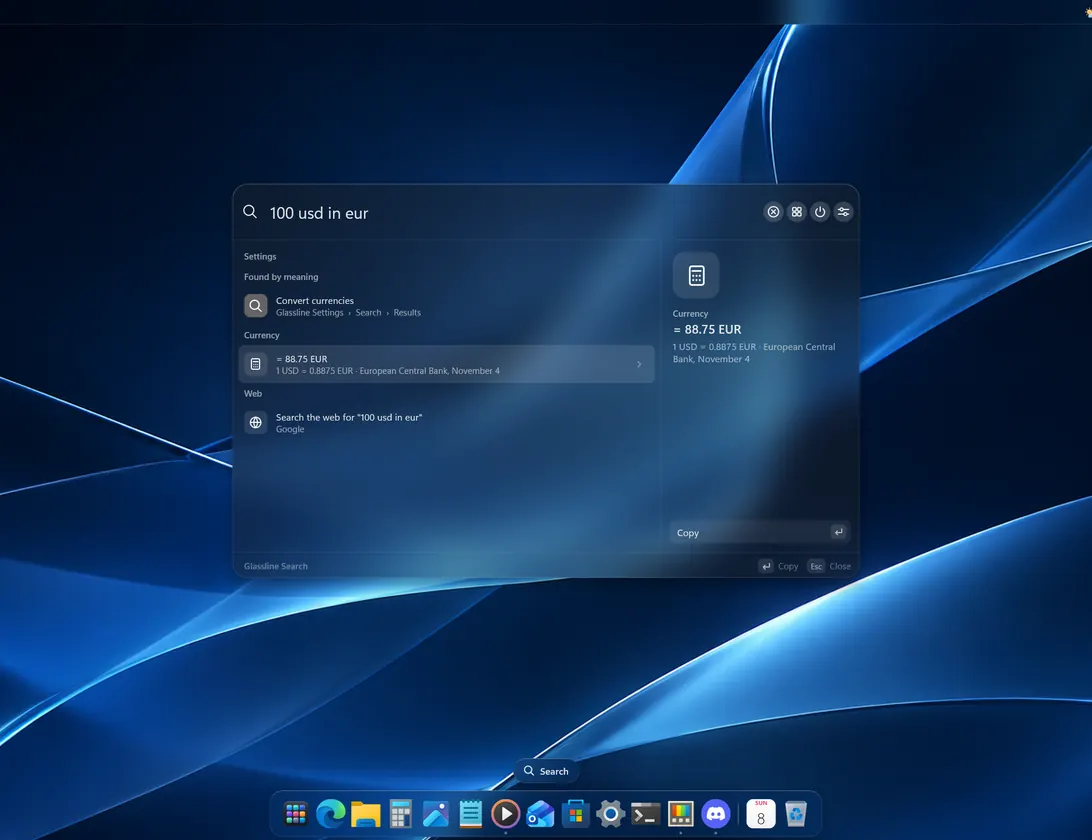
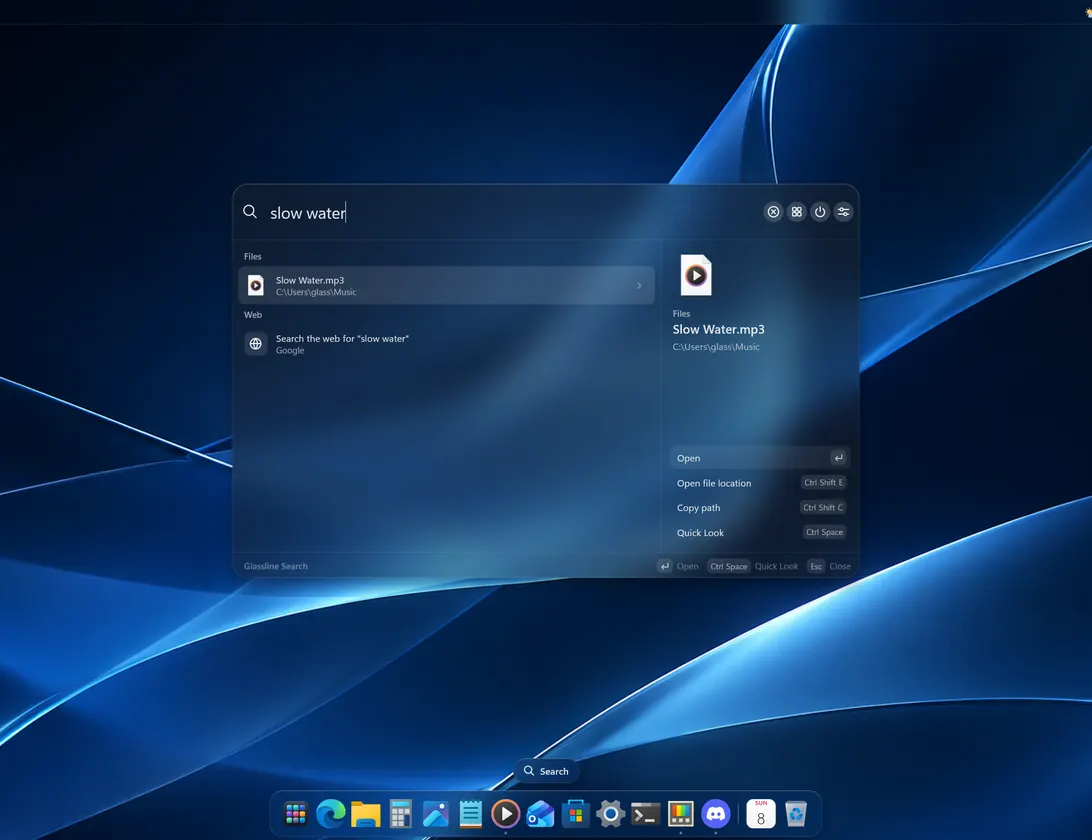
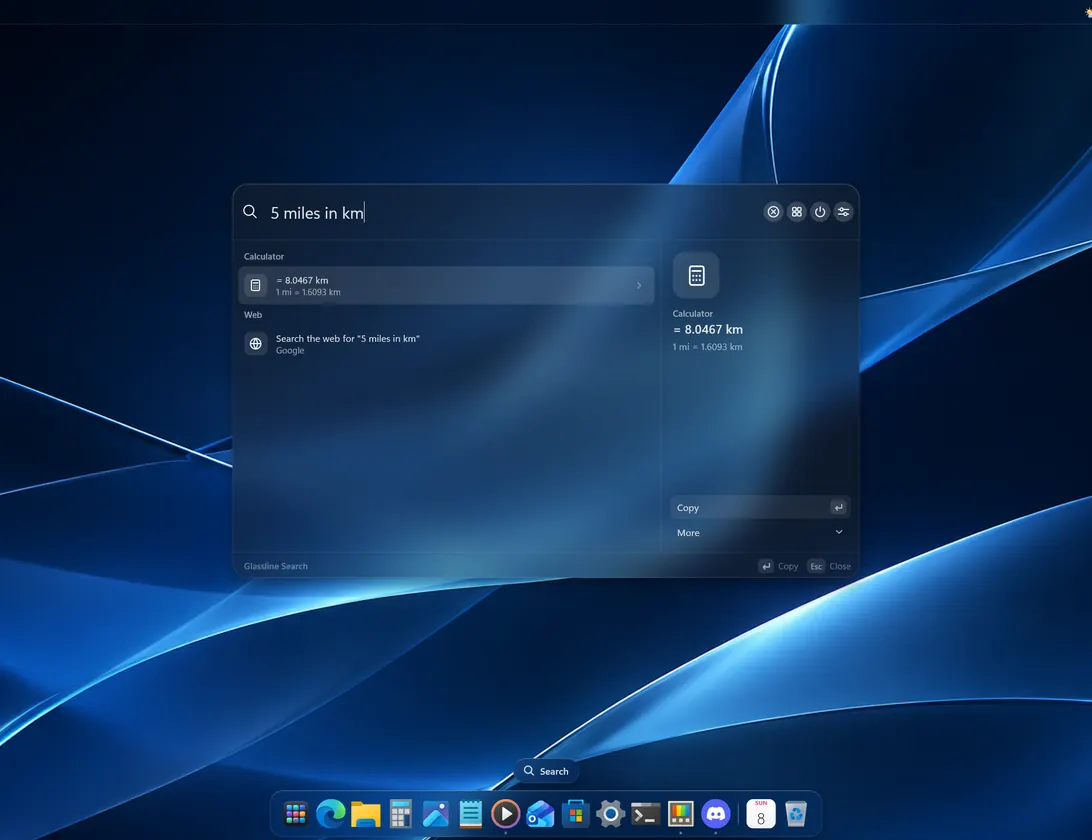
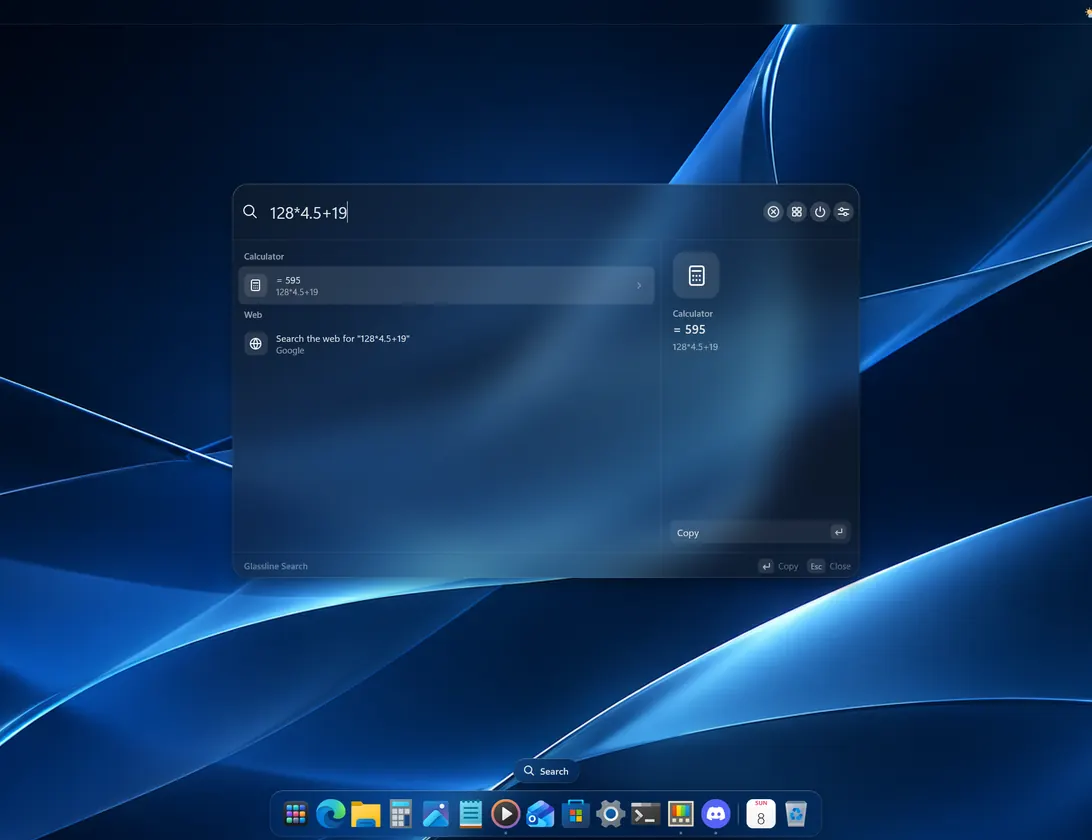
Find apps, settings, and documents by what's written inside them, and convert units and currencies as you type.
How it worksControl Center
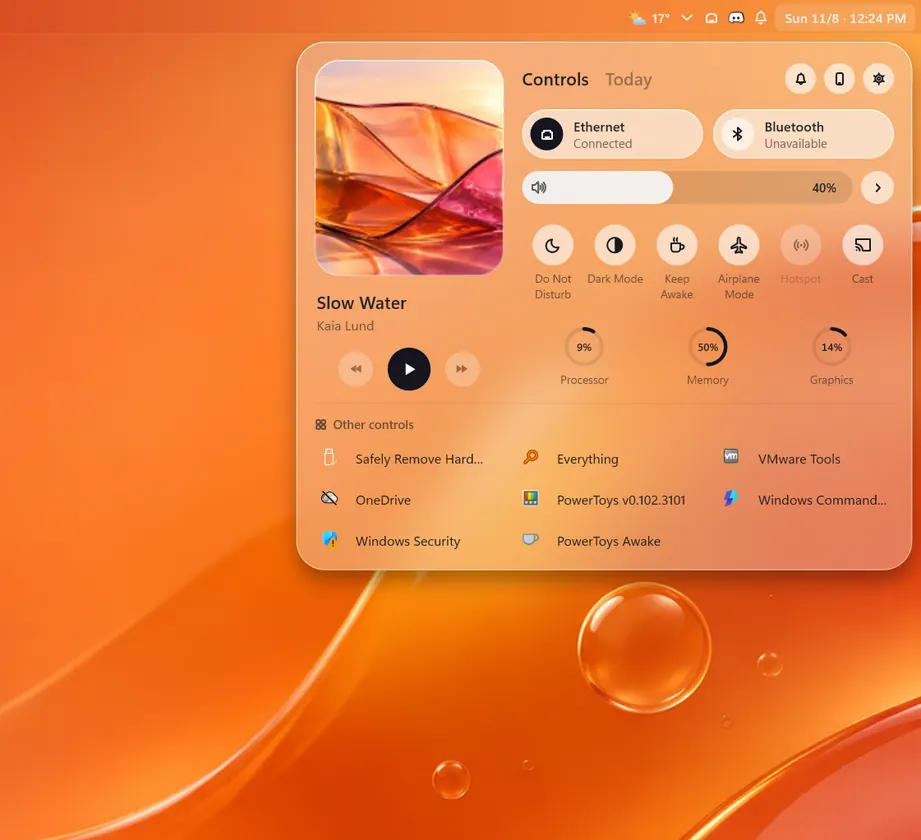
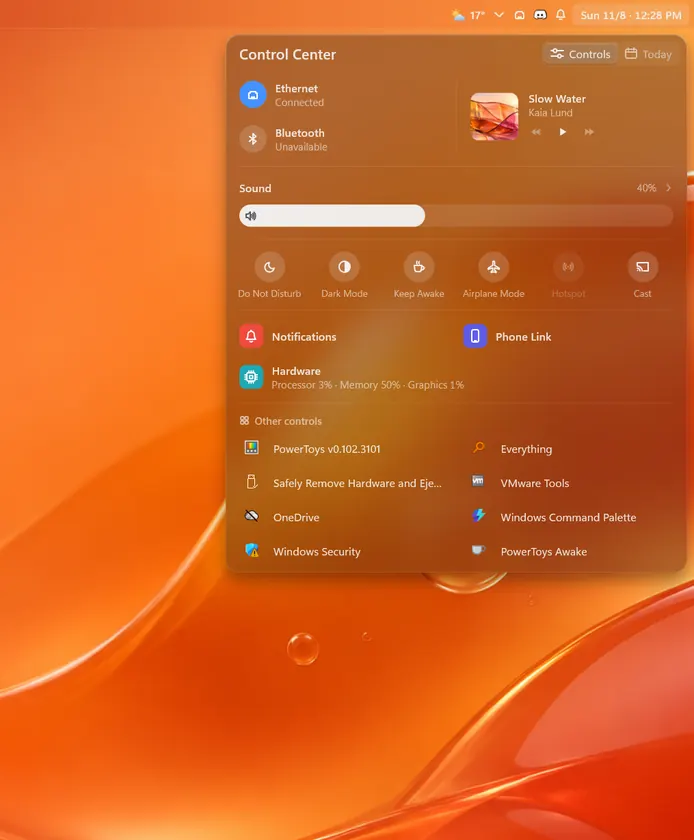
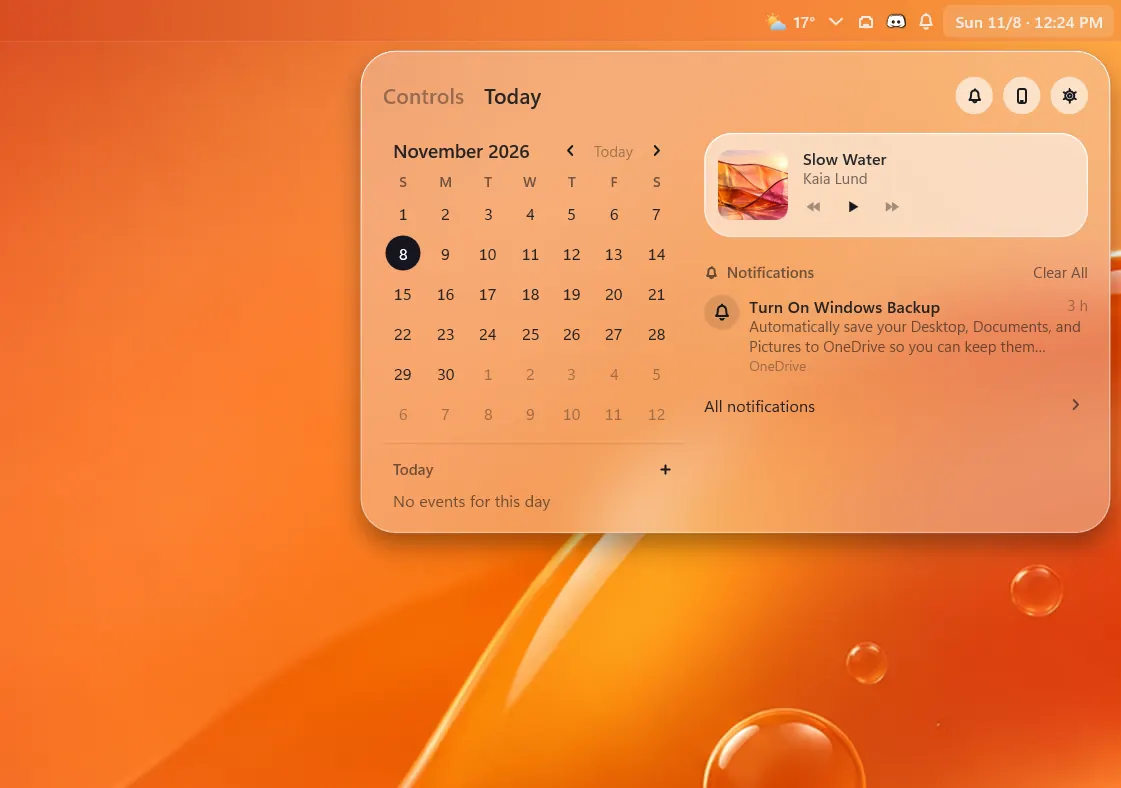
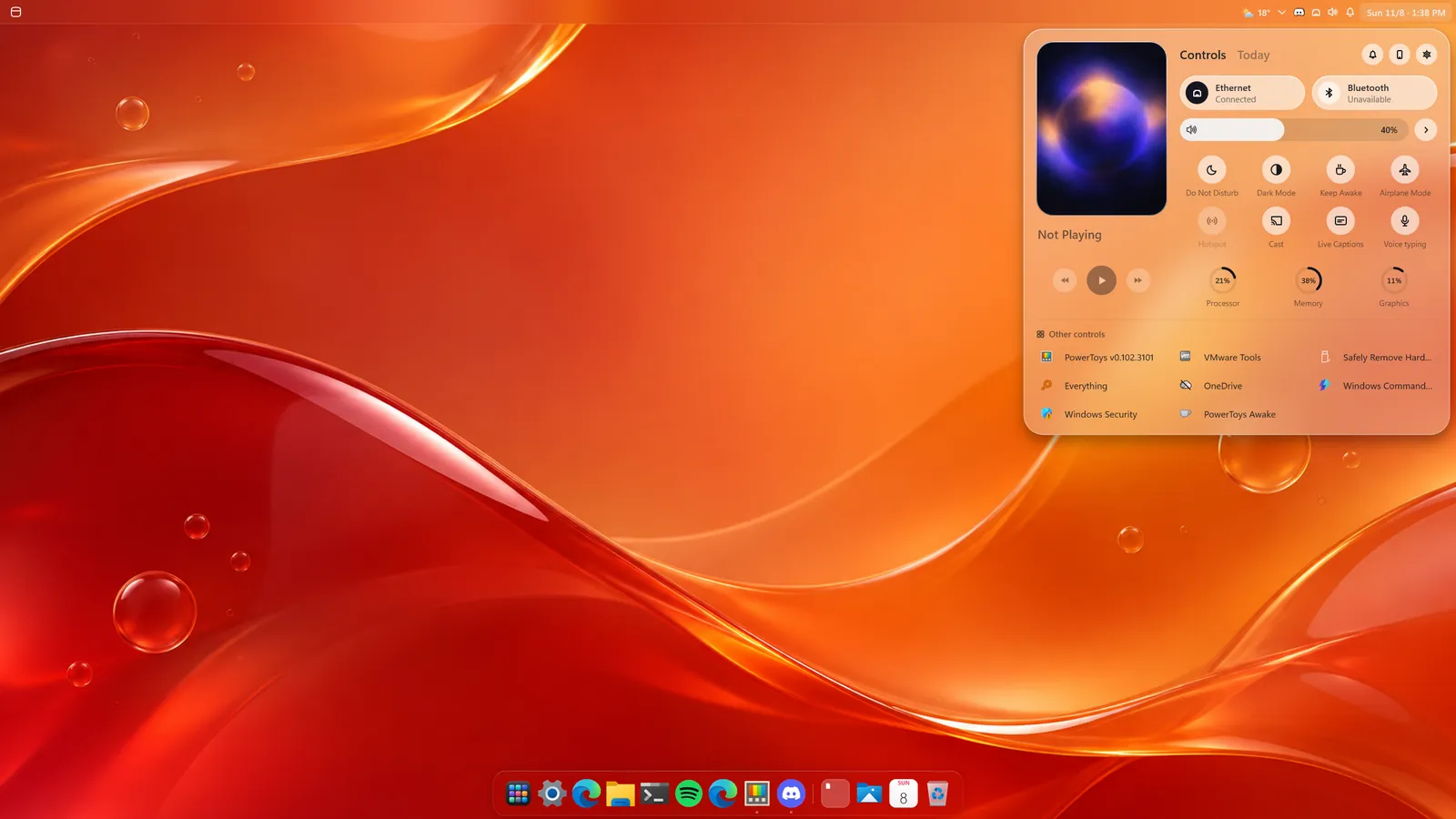
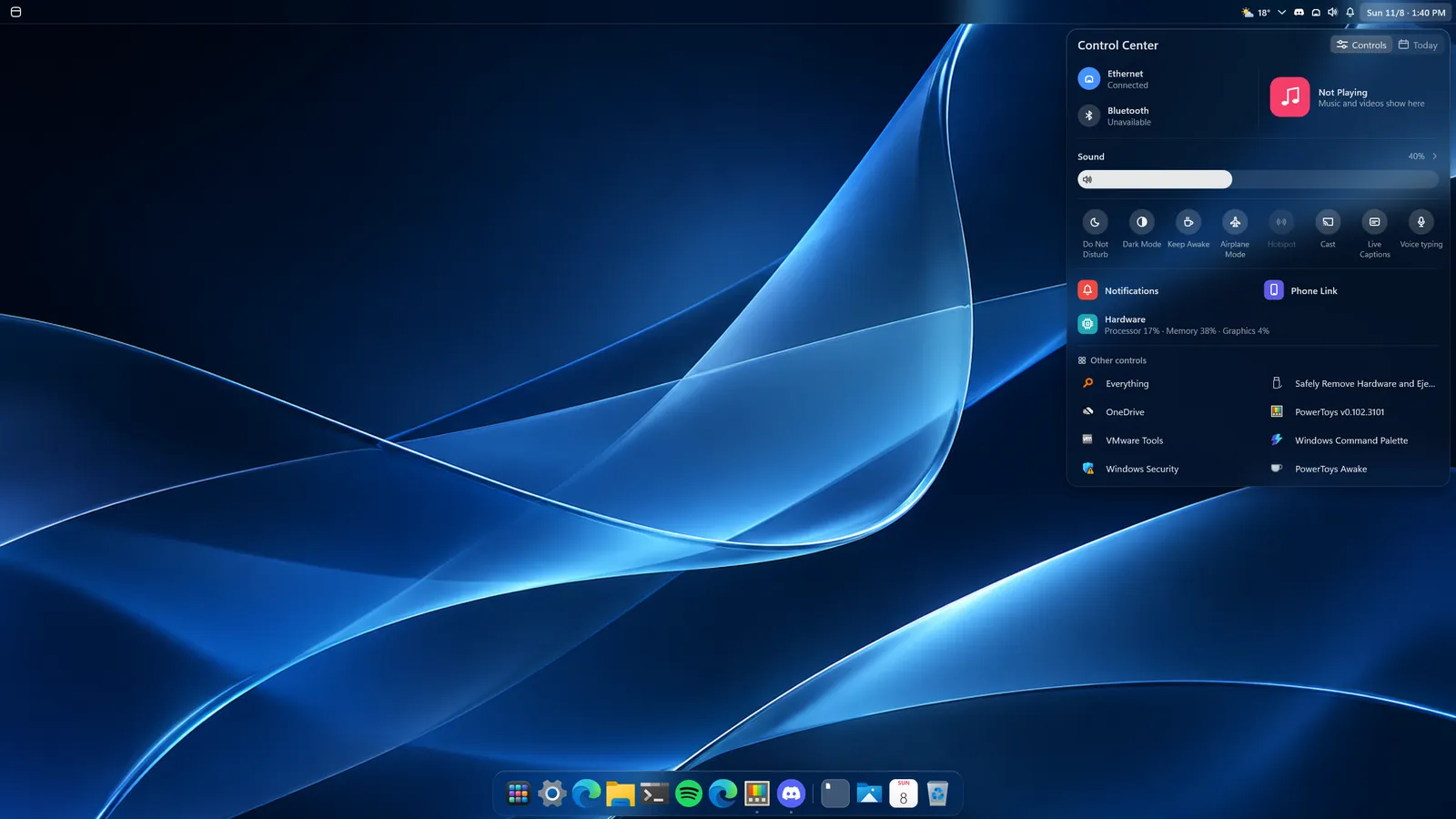
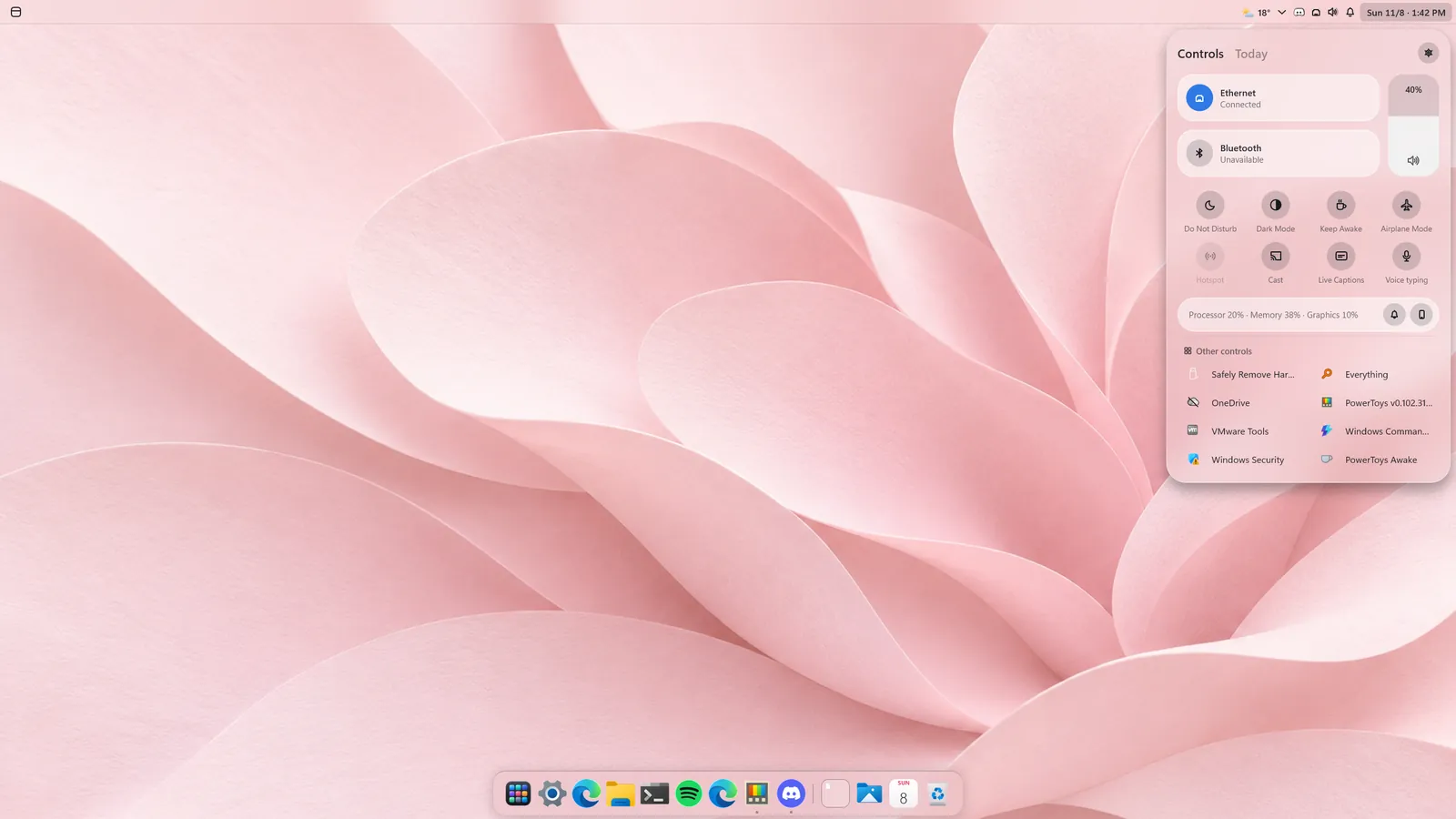
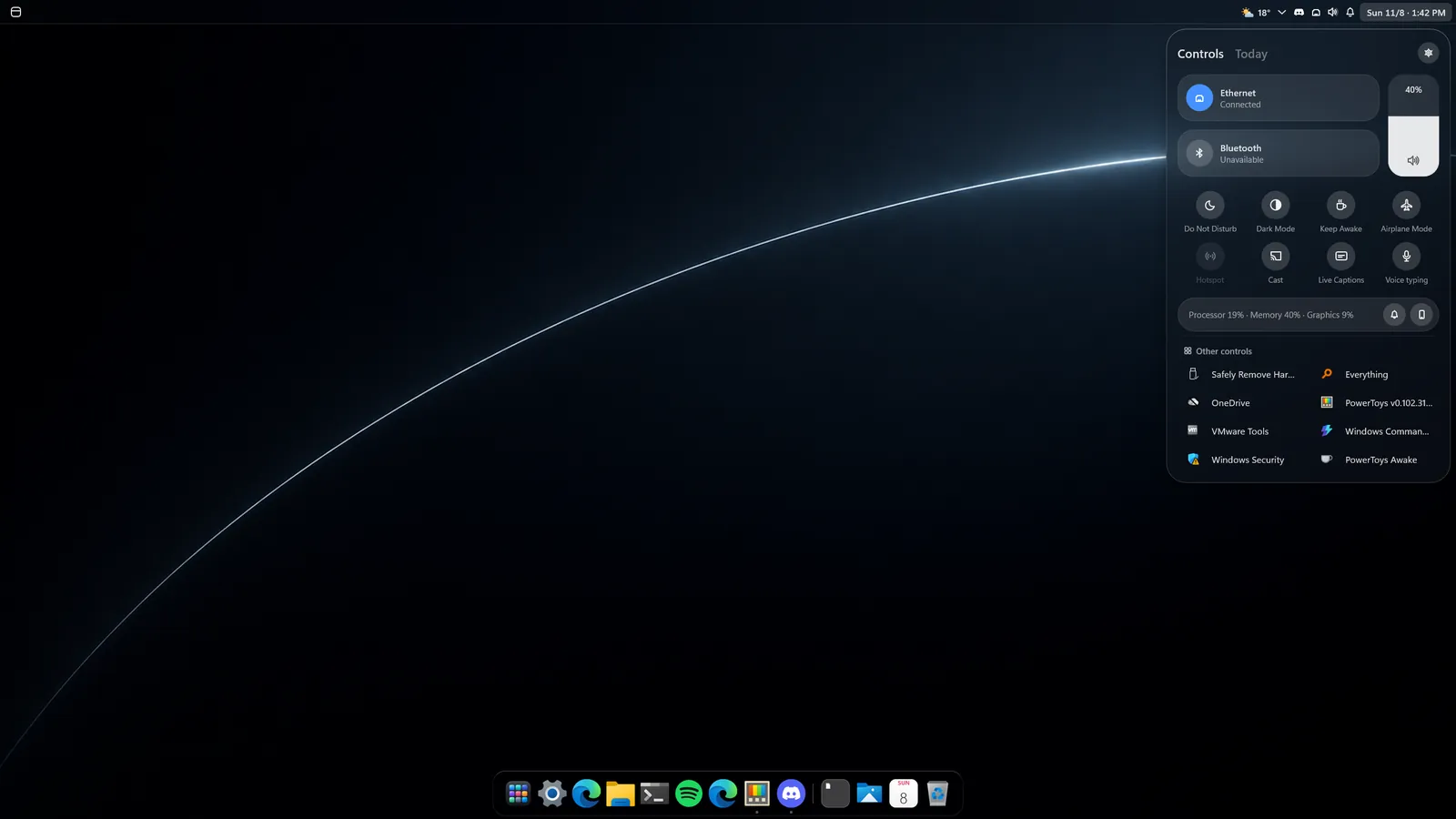
Set the volume of each app, see your notifications and calendar, and pick the Classic, Aurora or Deck look.
How it worksDisplays
Each display gets its own menu bar, and the dock can follow you or stay where you put it.
How it works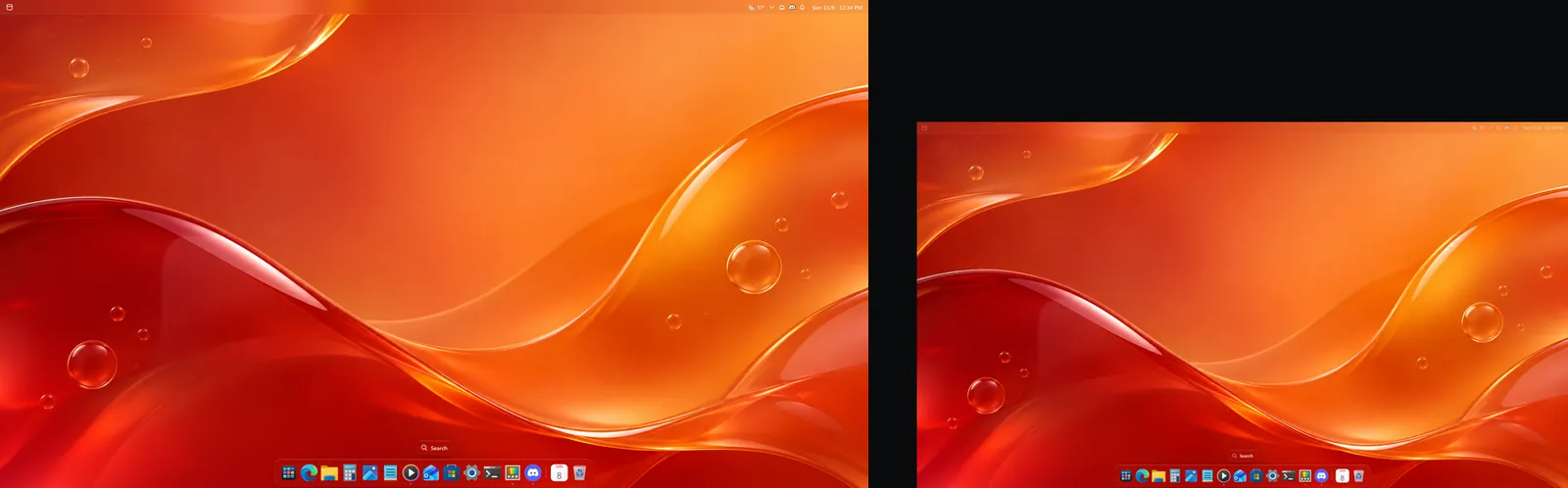
Games
Start a game and the menu bar and dock step aside until you are done.
How it worksWeather
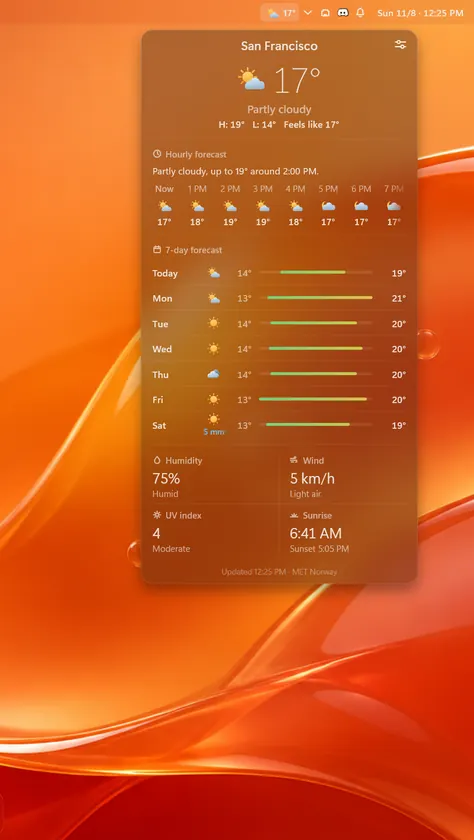
Click the temperature next to your status icons for the next hours and the week ahead.
How it works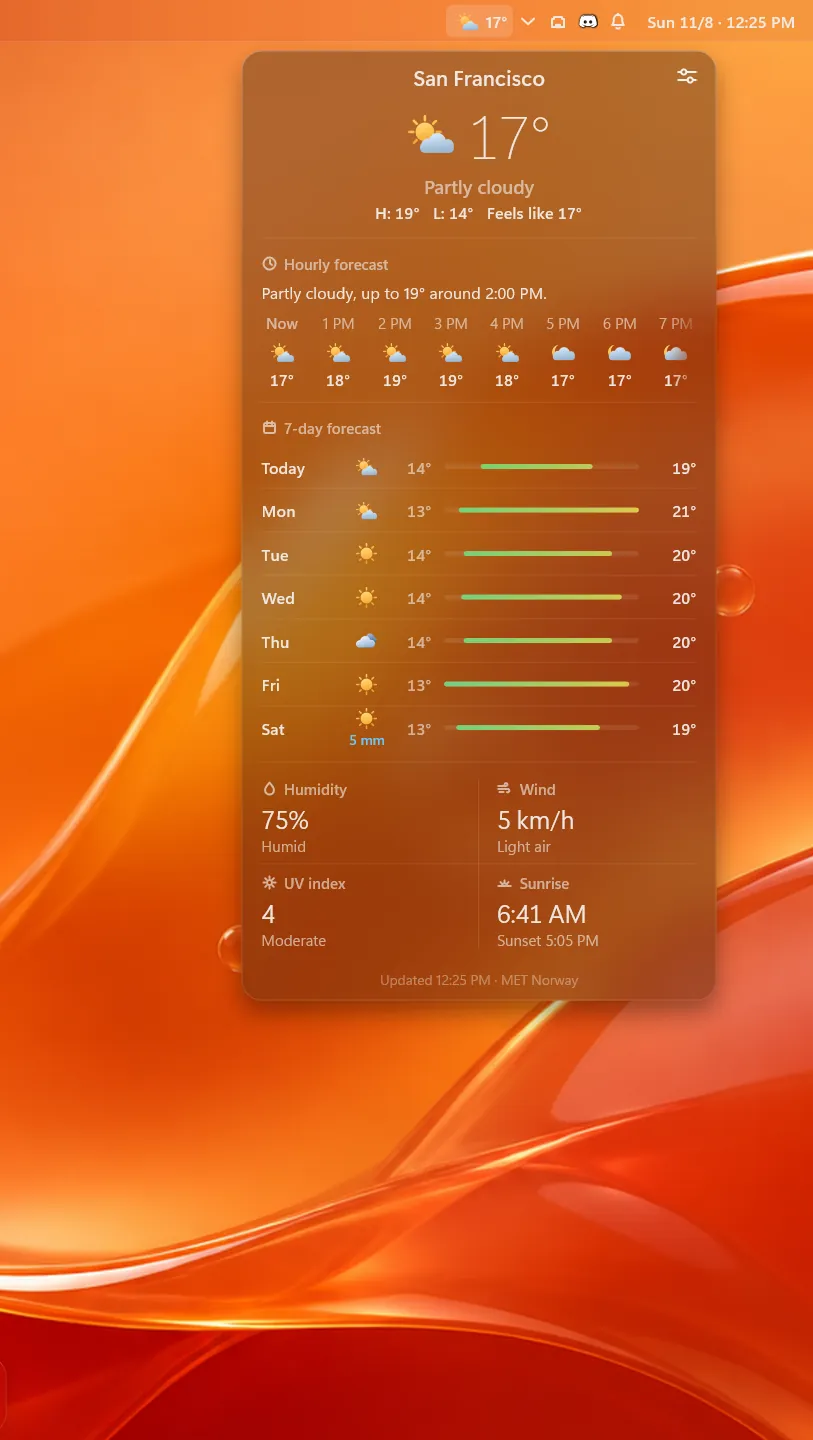
Your way
Folders, launch options, your own icons, and notifications where you want them.
How it works
Drop one app on another to make a folder, then click its name to call it what you like.
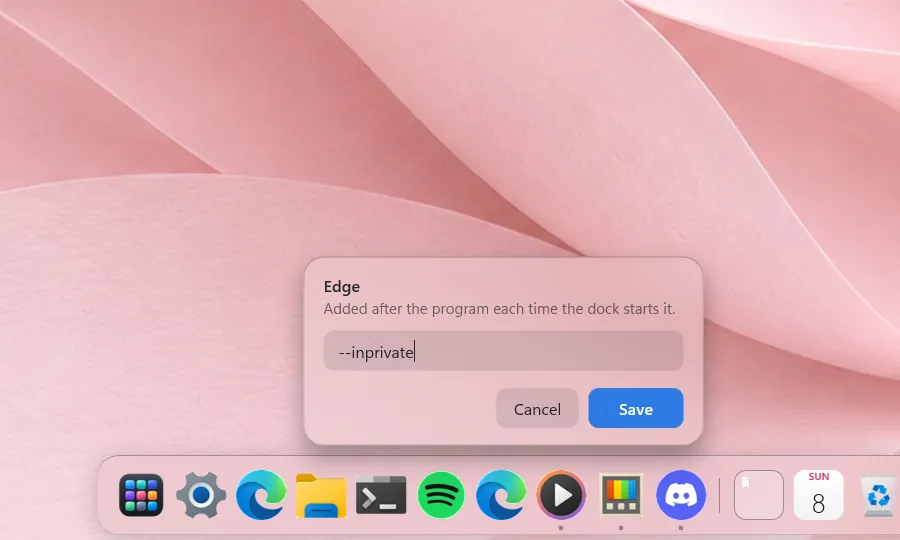
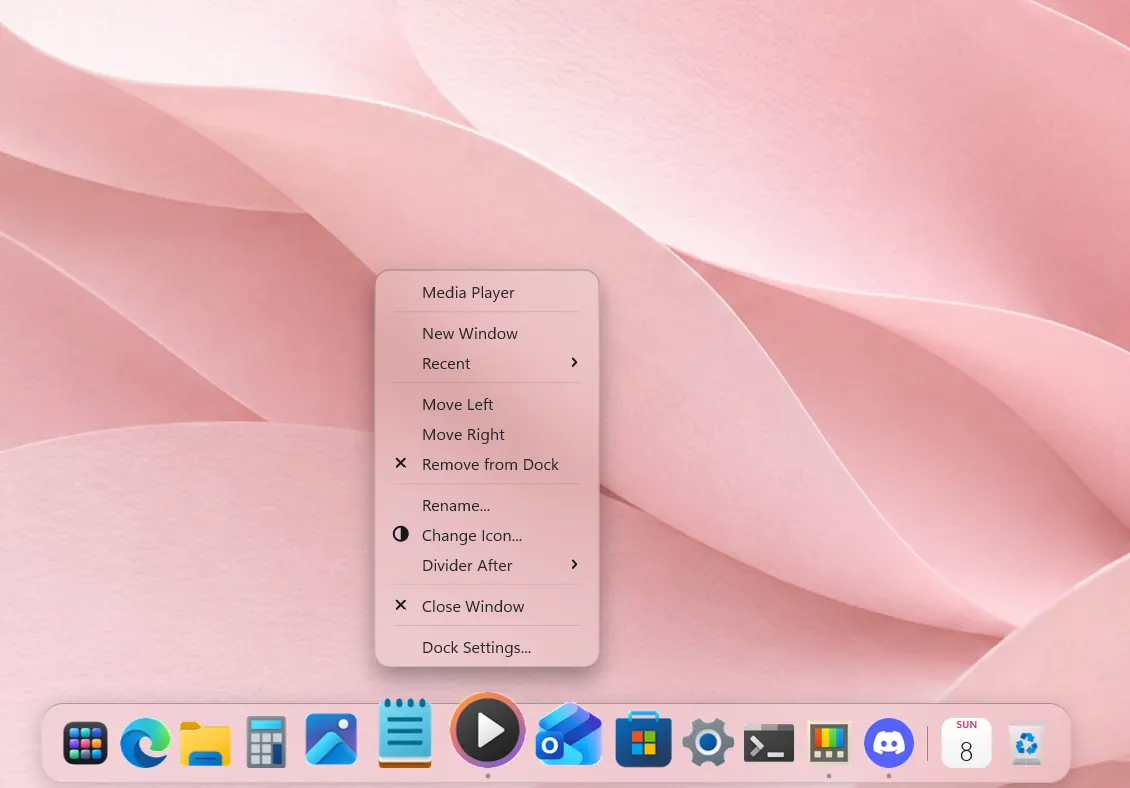
Right-click a pinned app in the dock and choose how it starts, like your browser always opening a private window.
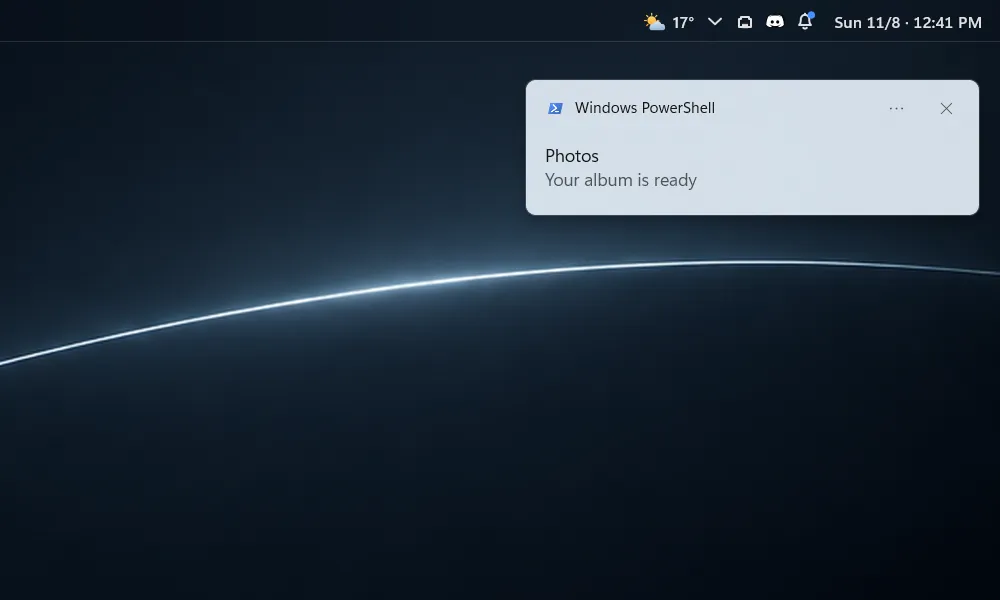
Choose where notifications show: where Windows puts them, or at the top right under the menu bar (Settings, Menu Bar).
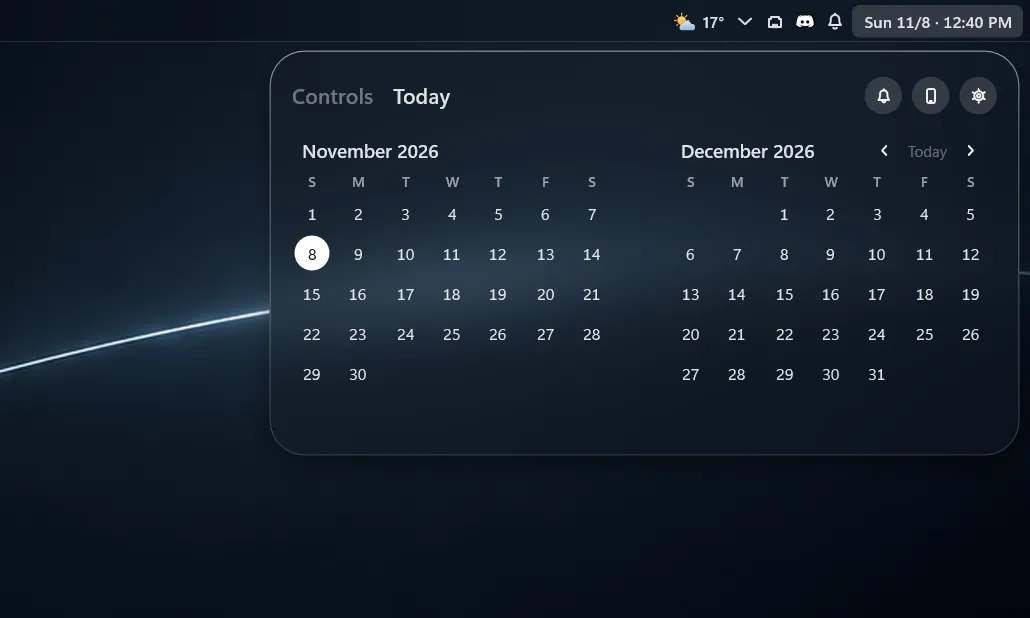
Today with just the calendar: switch off Calendar events and Today shows two months side by side.
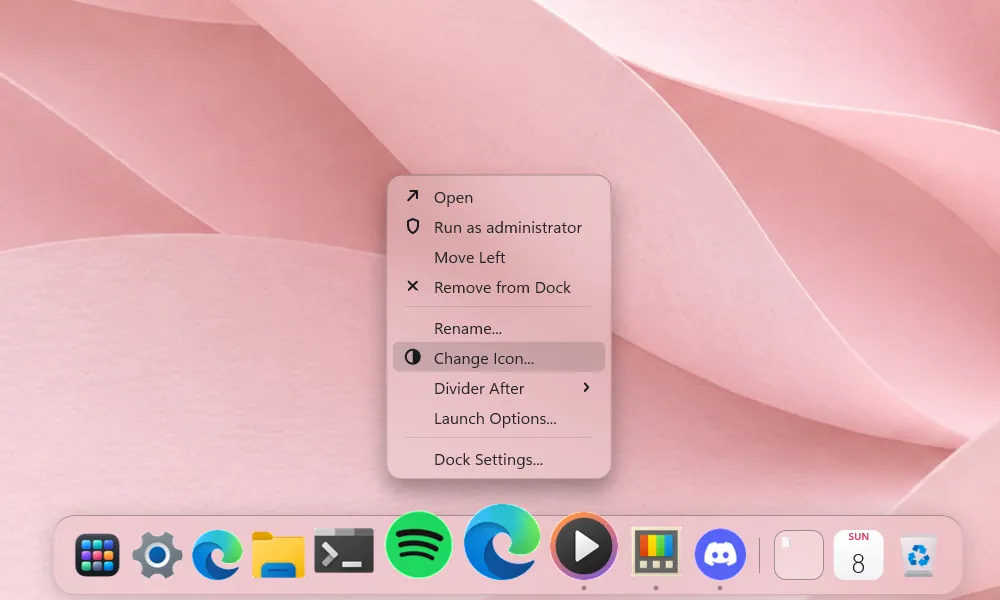
Right-click any icon in the dock, choose Change Icon, and give it a picture of your own.
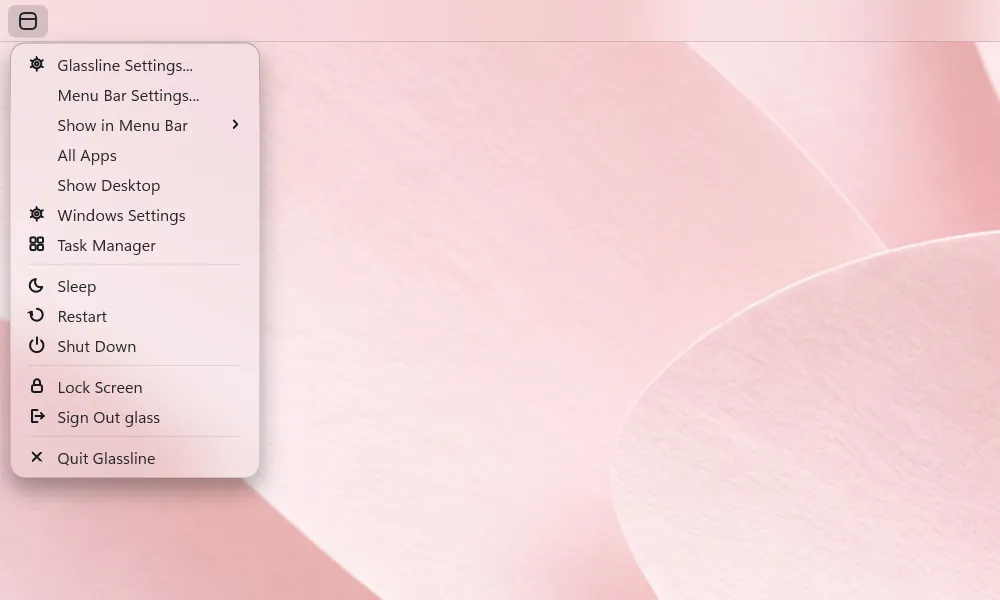
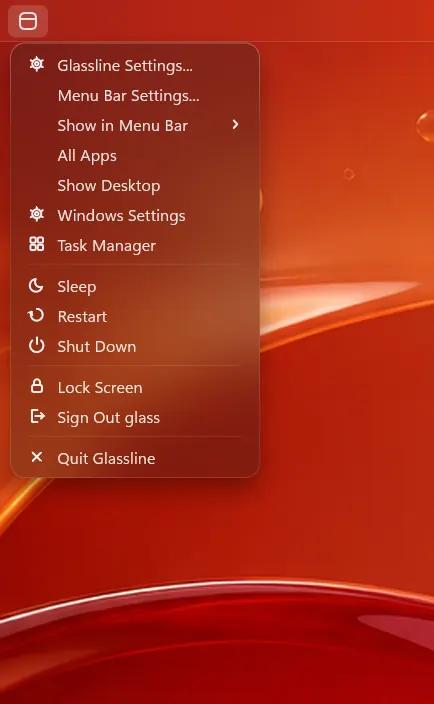
Click the logo at the left of the menu bar for All Apps, Show Desktop, Task Manager, Sleep, Restart and Shut Down. It can show a picture of your own.
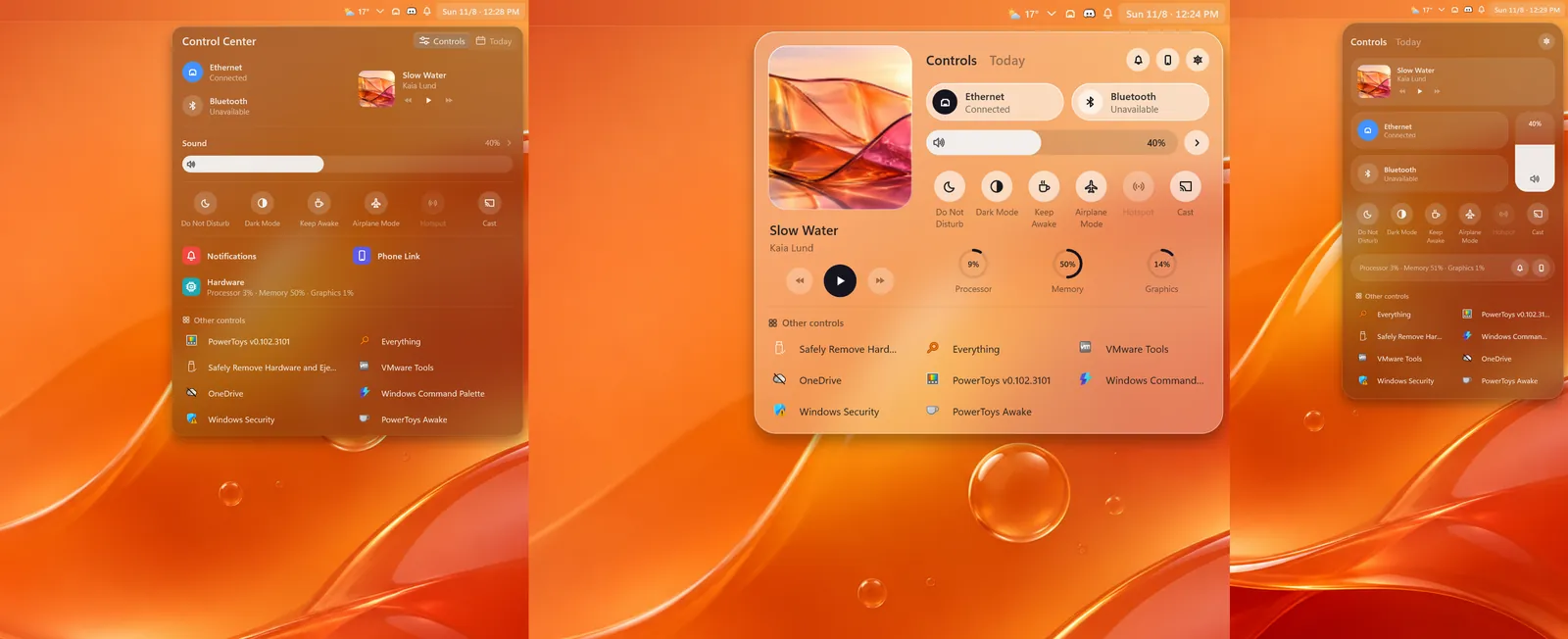
Pick the look of Control Center: Classic, Aurora or Deck, each with every page Control Center has.
Taskbar
Choose Quit Glassline from the logo menu and the taskbar and Start menu return exactly as they were.
How it works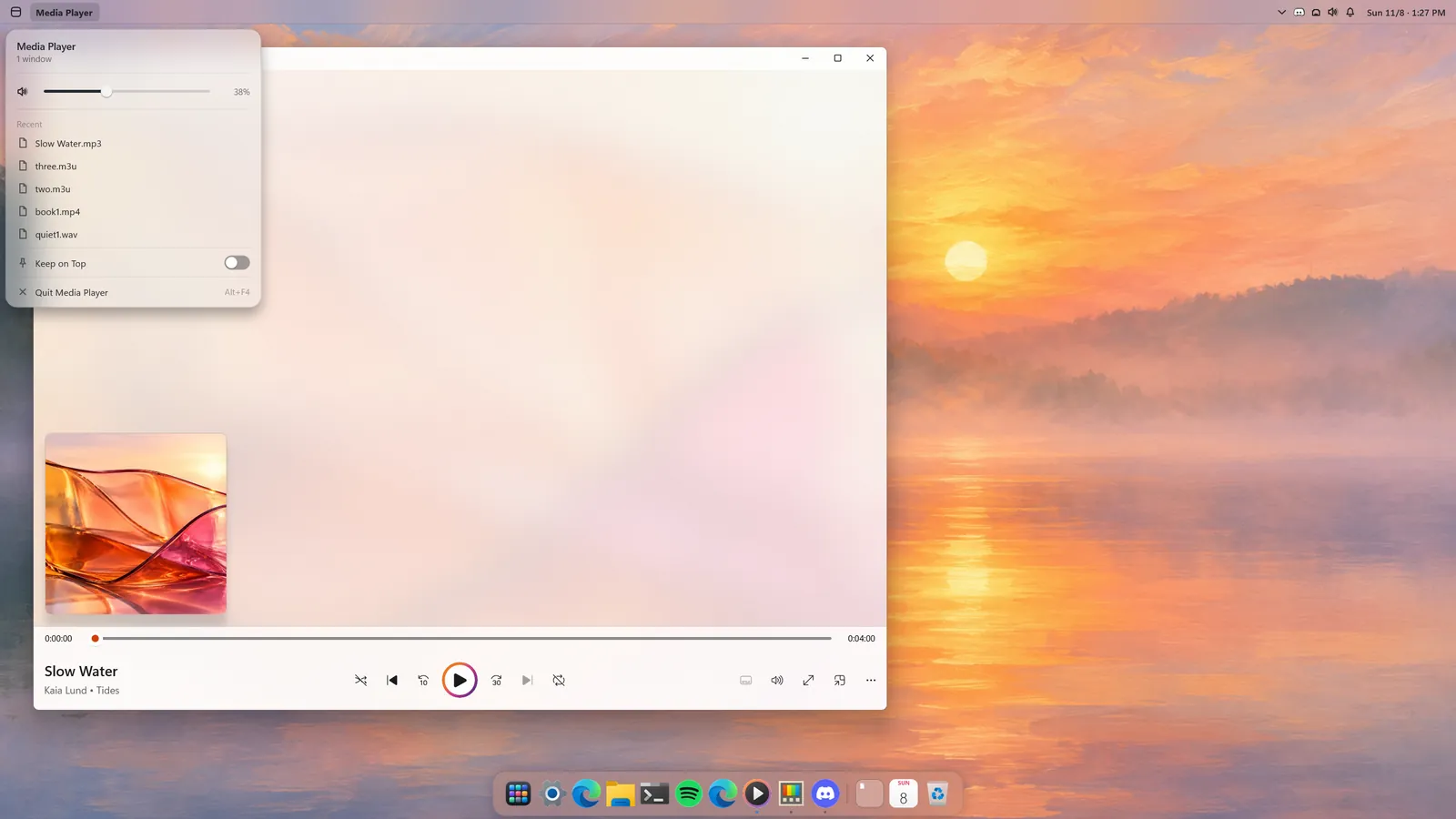
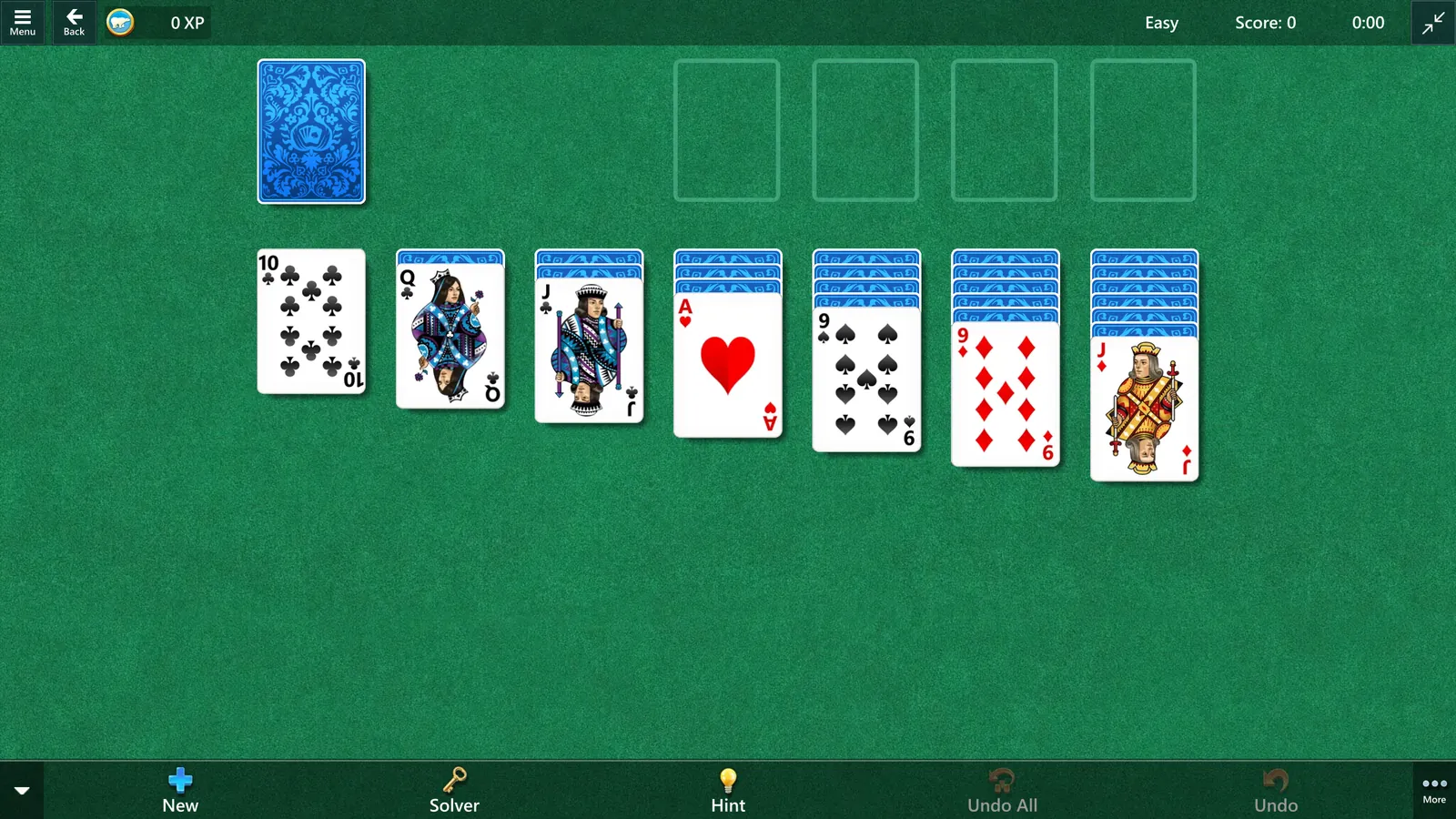
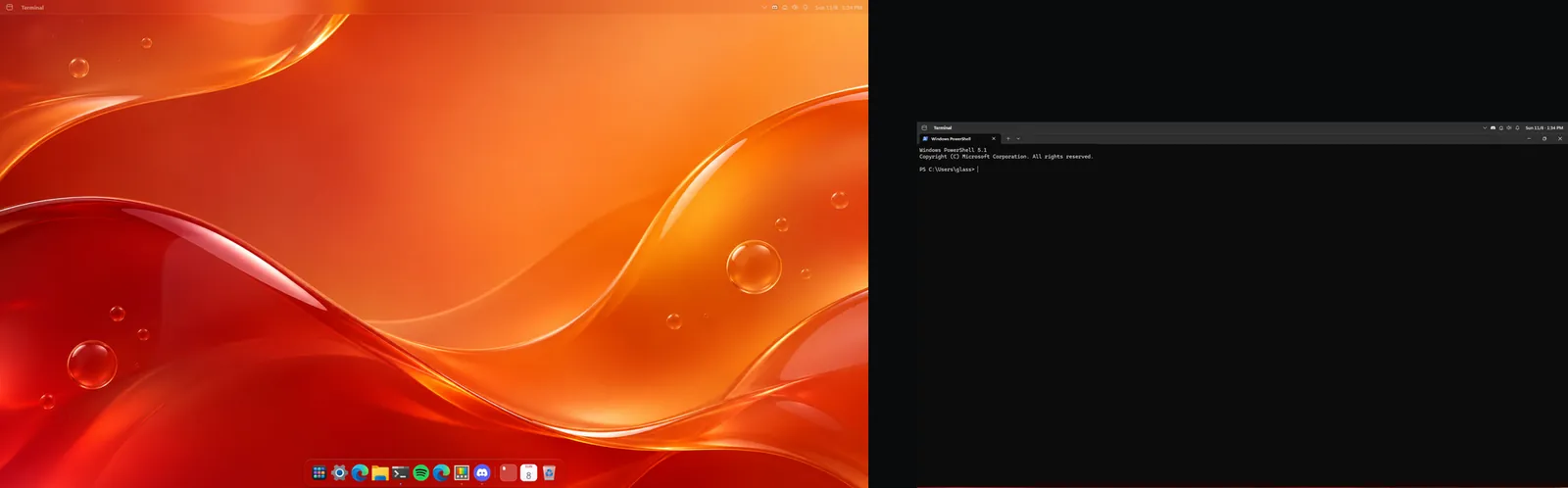
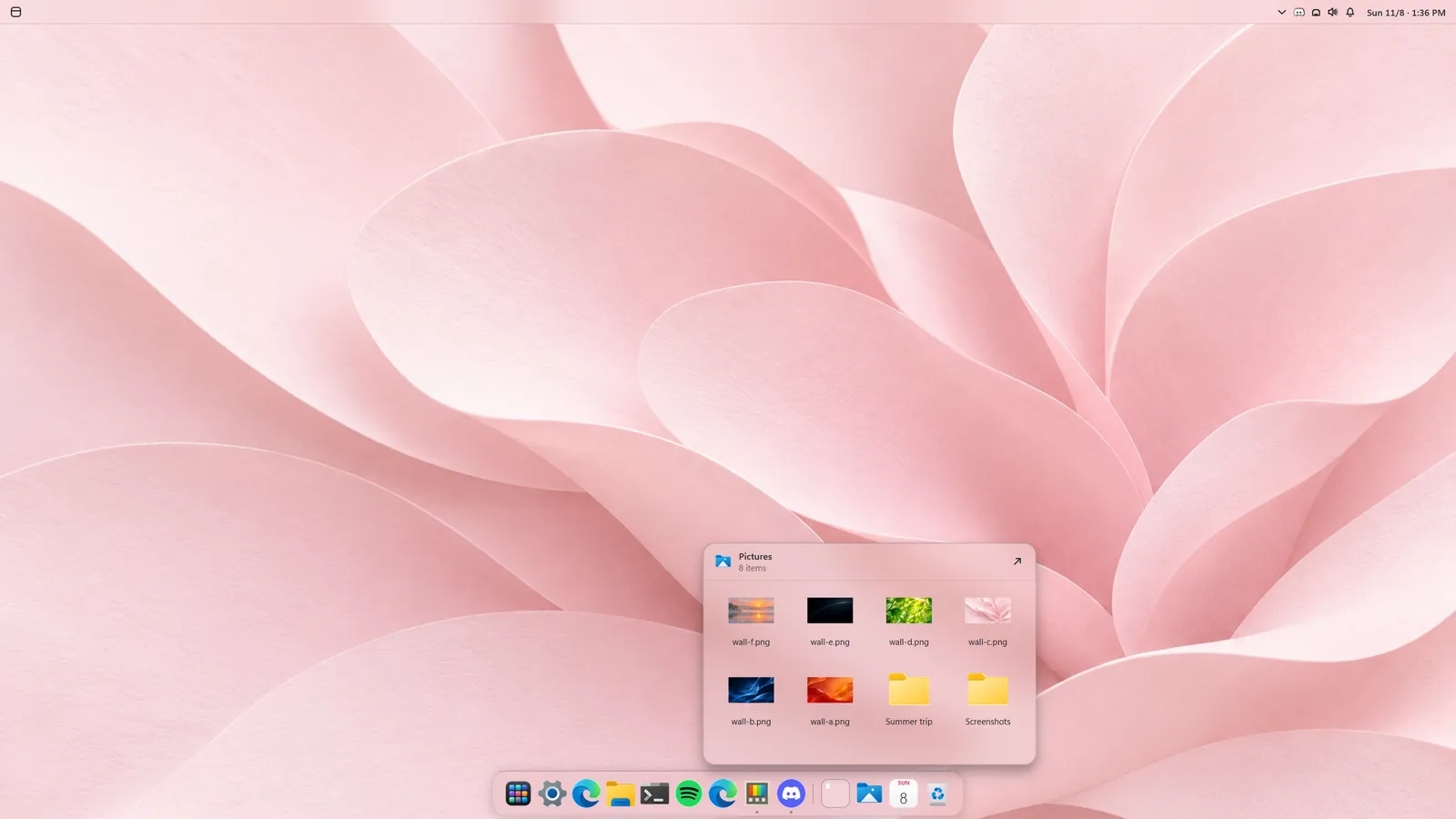
Recorded in one take on Windows 11.
Your look
Choose any wallpaper and pick Control Center's look: Classic, Aurora or Deck.
Free for 7 days. No subscription, and every update is free.
Try for freeWindows 11, version 22H2 or later
In English, Spanish, German, Polish, French and Brazilian Portuguese.
Right-click the menu bar and choose Quit Glassline, or press Quit in Glassline Settings, under General. The taskbar comes back exactly as it was. If Glassline ever closes unexpectedly, it comes back on its own.
Yes. While Glassline runs, the Windows taskbar and Start menu are hidden, and you get a menu bar at the top, a dock at the bottom and Search on the Windows key. Quit Glassline and the taskbar and Start menu are back as they were.
No. Glassline needs Windows 11, version 22H2 or later. The Store doesn't offer it on an older PC.
The layout will feel familiar if you have used a Mac: a menu bar at the top that follows the app in front, a dock with magnification at the bottom, and Search in the middle of the screen. The design is Glassline's own, made for Windows 11, and Glassline has no connection to Apple.
Glassline works the moment it is installed, with no themes or configuration files, and brings a menu bar, a dock, Search, Control Center, your calendar and the weather in one app. See it side by side: Glassline as a Seelen UI alternative, Glassline as a MyDockFinder alternative, and Glassline next to the other taskbar alternatives for Windows 11, including Start11, StartAllBack, Windhawk, YASB and Cairo Desktop.
Yes. Each display gets its own menu bar, in the colour of the app maximized on it; the bar on the display you aren't using is dimmed. The dock is on the display you are using, in that display's colours: click anywhere on another display and it comes there. It hides only for windows on its own display. Search and Settings open on the display you are working on. To keep the menu bar on your main display only, turn off Show on every display in Glassline Settings, under Menu Bar.
While a game on your list is maximized or fills the display, the menu bar and the dock leave that display and the game gets the room they kept free. Glassline never moves a game's window, and when you switch to another app everything is back. A game in a small window changes nothing. Anything else that fills the screen, like a video, also makes them step out of the way. The setting is Step aside for games, in Glassline Settings, under Games. The games Windows knows are listed by themselves, and one started from Steam, Epic, Xbox or another launcher joins the list the first time it runs. To add another game or any program, press Add... under Add a game or an app; the switch beside a game leaves it out.
Yes, through the calendar's address. Google Calendar, Outlook, iCloud and most other calendar services can give a calendar an address that starts with https:// or webcal://. Paste it into Calendars in Glassline Settings, under Control Center, and its events appear in Today next to your own. Each calendar can have its own colour, name and reminder. To change one of its events, use the calendar's own app.
Uninstall it from Windows Settings, under Apps. The taskbar and Start menu come back on their own, even if Glassline was running.
Yes. In Glassline Settings, under General, press Save Backup: your settings, the dock, your own events and what Search has learned go into one file. After a reinstall, or on the other PC, press Load Backup and choose that file.